
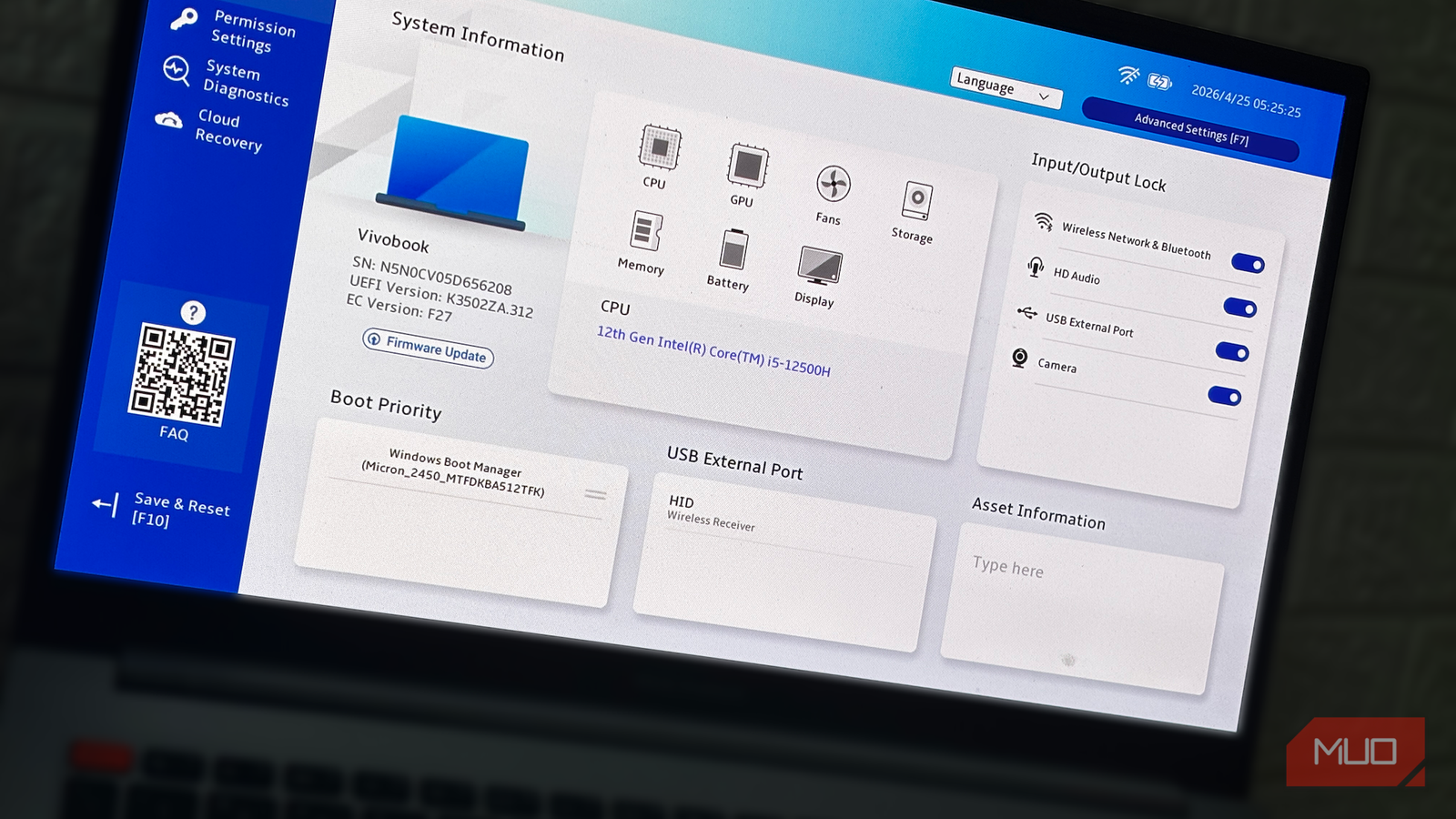
You can update your Intel CPU’s BIOS to fix potential hardware damage and security vulnerabilities. This process requires careful preparation and execution to avoid bricking your motherboard.
Understanding the Risks of Outdated BIOS and CPU Vulnerabilities
Updating your BIOS, once an optional task, is now often unavoidable for PC owners. While BIOS updates can improve stability, they also carry the risk of rendering your hardware unusable if the process fails. Some updates, however, address critical issues, such as Intel’s mandatory update for its 13th and 14th-gen CPUs.
These specific Intel processors were susceptible to damage from their own firmware. Unless updated, the CPUs could overheat and fail. This situation highlighted the critical need for timely BIOS updates, especially when hardware integrity is at stake.
The issue with the 13th- and 14th-gen Intel CPUs involved aggressive power and voltage settings pushed by motherboard manufacturers. These settings exceeded the processors’ safe operating limits, leading to instability and potential hardware destruction.
How to Update Your Intel CPU’s BIOS
Intel responded to the problematic eTVB settings by releasing several BIOS updates. These updates aimed to correct the aggressive power and voltage configurations that were damaging the CPUs. The fix involved more than a single update; it required multiple microcode updates and a specific BIOS revision to fully resolve the issues.
Additionally, Intel provided updated default value recommendations for its CPUs. This guidance assisted motherboard manufacturers in implementing appropriate settings, moving away from the performance-over-stability approach that caused the problems. The collective effort ensured more stable operation.
The resolution for the 13th- and 14th-gen Intel CPUs involved a series of approximately 4 microcode updates and a final BIOS update. This multi-step process addressed the voltage and performance misconfigurations that were impacting these processors.
Intel CPU Issues and Potential Hardware Damage
The core of the problem for Intel’s 13th and 14th-gen CPUs stemmed from motherboard manufacturers misconfiguring default voltage settings. These settings exceeded the CPUs’ tolerance, leading to instability and damage. The issue was particularly prevalent with higher-end chips.
Many of these higher-end Intel processors feature Enhanced Thermal Velocity Boost (eTVB). This technology allows CPUs to reach higher boost clocks under cooler conditions. However, a bug within eTVB caused it to require incorrect voltages, contributing to the overall instability.
Aggressive power and voltage limits set by motherboard manufacturers were a primary cause for squeezing extra performance. These limits were often applied without proper stability checks. The CPUs would only downclock when reaching 100 °C, an unusually high threshold.
In some cases, prolonged use under these aggressive settings resulted in permanent silicon damage to the CPUs. This damage was sometimes visible as burnt components and could also affect the motherboard socket. Users with affected CPUs could typically process a warranty claim via RMA.
A phenomenon known as Vmin shift was also observed. This occurs when a CPU, after being subjected to higher voltages, requires a higher minimum voltage to maintain stability. For example, a CPU that previously needed 1.10V might now require 1.15V.
Similar issues have affected AMD CPUs. The AMD 7000 series processors experienced problems with excess SoC voltage, leading to burned CPUs and motherboards. Some motherboards incorrectly set SoC voltages as high as 1.4V, far exceeding the safe limit of 1.30V.
The problem was exacerbated by enabling features like EXPO. Raising memory voltages could inadvertently increase SoC voltages, contributing to CPU damage. AMD released AGESA firmware updates to enforce maximum SoC voltage limits and other safety parameters.
CPU-burning incidents continue to be reported, including a recent case with a Ryzen 7 7800X3D. This CPU swelled and burned due to the same SoC voltage issue, damaging the motherboard in the process. Such occurrences underscore the importance of BIOS updates.
Why Updating Your BIOS is Crucial Beyond Hardware Stability
Beyond preventing hardware damage, BIOS updates address critical security vulnerabilities. Malware can exploit BIOS vulnerabilities to infect a PC at a fundamental level, even before the operating system loads. This makes BIOS security paramount.
Attacks like the BlackLotus exploit from 2023 demonstrated this risk. This malware could bypass Secure Boot, disable security features like BitLocker and Microsoft Defender, and gain complete control over a PC. Such threats highlight the need for up-to-date firmware.
Other BIOS and CPU-targeting exploits, such as LogoFAIL and Sinkclose, have also emerged. These vulnerabilities grant attackers access to sensitive data and control over your system. Keeping your BIOS updated is essential to protect against these persistent threats.
In addition to security and stability, BIOS updates can introduce new features. These may include support for newer CPUs or expanded RAM profiles, improving overall system compatibility and performance.
Preparing for and Performing a BIOS Update
Before updating your BIOS, it’s recommended to back up any custom configurations. A BIOS update will typically reset all settings to their default values. This ensures compatibility and prevents potential conflicts.
It is advisable to perform BIOS updates using a USB drive rather than an internet connection. This method provides a more stable and reliable update process. Ensure your PC has a steady power supply throughout the procedure.
A sudden power loss during a BIOS update can lead to a bricked motherboard. Maintaining a consistent power source is critical to avoid interrupting the update process. This precaution is vital for a successful outcome.
If you encounter issues after updating your BIOS, the problem often lies with the update process itself. Ensure you downloaded the correct BIOS file for your specific motherboard model. Incorrect files can cause instability or prevent the system from booting.
Frequently Asked Questions
Why should I update my BIOS for my Intel CPU?
You should update your Intel CPU’s BIOS to fix critical hardware stability issues, prevent potential CPU damage from aggressive voltage settings, and patch security vulnerabilities that could allow malware to compromise your system.
How do I update my Intel CPU’s BIOS to fix performance or stability issues?
To update your Intel CPU’s BIOS, download the latest version from your motherboard manufacturer’s website, place it on a USB drive, and follow the on-screen instructions within your system’s BIOS/UEFI interface.
What problems can occur with Intel 13th and 14th gen CPUs?
Intel 13th and 14th gen CPUs experienced instability and potential damage due to motherboard manufacturers setting default voltages too high, often related to the Enhanced Thermal Velocity Boost (eTVB) feature.
Can a BIOS update brick my motherboard?
Yes, a BIOS update carries a risk of bricking your motherboard if the process is interrupted by a power outage or if an incorrect BIOS file is used.
Are BIOS updates only for performance improvements?
No, BIOS updates are crucial for fixing security vulnerabilities and addressing critical hardware stability issues, not just for performance enhancements or new feature support.
The post Intel CPUs: 4 Microcode Updates & BIOS Fix for 13th/14th Gen Damage appeared first on trendblog.net.