
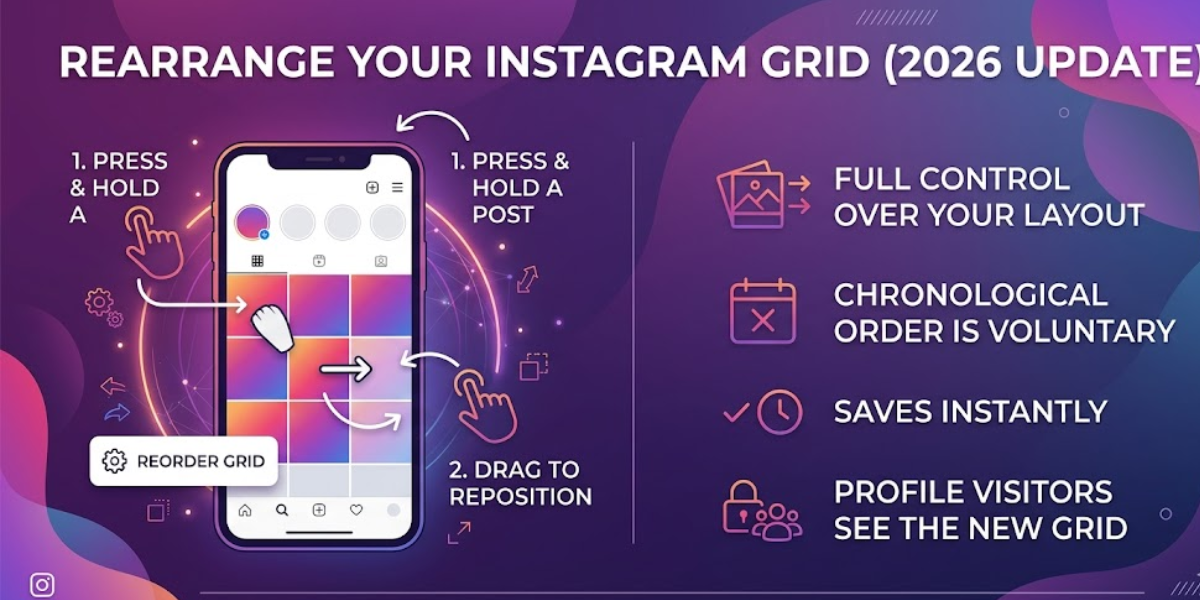
You’ve waited years for this. Instagram finally rolled out its most-requested feature on Monday, June 8, 2026, letting you rearrange your profile grid posts in any order you want. Below you’ll find the exact step-by-step process to reorder your grid, plus what to do if the option mysteriously vanishes.
What you’ll need
Make sure you have these basics covered before you start. The setup takes under a minute.
Prerequisites checklist
- The Instagram mobile app installed on your smartphone or tablet (the feature does not work on desktop)
- An active Instagram profile with existing posts on your grid
- App updated to the latest version from your device’s app store
Step 1: Open your Instagram profile
Launch the Instagram app and tap your profile picture in the bottom-right corner of the screen. This takes you to your own profile page where all your grid posts are displayed in rows of three.
You need to be on your own profile—not someone else’s—for the reorder option to appear. If you land on the Home feed by accident, just tap that profile icon again.
Step 2: Locate the post you want to move
Scroll through your grid and find the specific photo or video you want to reposition. You do not need to tap into the full post—just spot it in the thumbnail grid view on your profile.
Keep in mind that pinned posts and Reels will remain fixed at the top of your profile, so you will only be rearranging the unpinned grid posts below them.
Step 3: Press and hold, then select “Reorder grid”
Press and hold the post until a menu pops up with several options. Tap “Reorder grid” to enter editing mode. Your grid will shift to a rearranged view where each post can be dragged freely.
The gesture works the same on both iOS and Android devices. A slight delay before the menu appears is normal—just hold for about one second.
What if the “Reorder grid” option doesn’t appear?
Some users have reported the “Reorder grid” option disappearing from their accounts after initially having access. If you don’t see it, first confirm your app is fully updated. Then try closing and reopening the Instagram app, or logging out and back in.
If it is still missing, it may be a staggered rollout or a temporary account-side glitch. Report the issue through Instagram’s Help Center so the team can investigate your account specifically.
Step 4: Drag posts into your desired layout
Once you are in reorder mode, simply press and drag any post to a new position in the grid. Drop it where you want, and the surrounding posts will shift automatically to make room.
You can move as many posts as you like in a single session. Build color-coordinated rows, alternate portrait and landscape shots, or create a narrative flow—you have full control.
Step 5: Save and confirm your new grid
There is no separate “Save” button. When you finish arranging, just tap back or navigate away from the reorder view. Your new layout saves instantly and is visible to anyone who visits your profile.
You can rearrange your grid an unlimited number of times—there are no caps or cooldowns. Feel free to experiment freely until your profile looks exactly the way you want.
Tips & troubleshooting
Here are the most common issues run into when reordering grids, and what to do about each one.
Why did the “Reorder grid” option disappear from my account?
This is a known issue some users experienced even after the June 2026 launch. It is often tied to an app version mismatch or a temporary account flag. Updating the app, restarting your device, or logging out and back in usually resolves it.
Do pinned posts and Reels move when I rearrange?
No. Pinned posts and Reels stay fixed at the top of your profile when you rearrange the grid. Only the unpinned posts below them are draggable.
If you want a pinned post in a different spot, you will need to unpin it first.
Can I reorder my grid on desktop?
Grid reordering is only available on the mobile app for smartphones and tablets. The desktop version of Instagram on a browser does not let you drag and post reorders, so you will need to grab your phone to make changes.
Conclusion
Instagram’s grid reorder feature lets you treat your profile like a curated portfolio instead of a chronological timeline. You can rearrange as many times as you want, as long as you are using the mobile app. Start experimenting—your profile layout is finally entirely in your hands.
Frequently Asked Questions
How do I rearrange my Instagram grid posts in 2026?
Open your profile in the Instagram mobile app, press and hold a post, select “Reorder grid” from the menu, then drag your posts into any order you like. The feature launched globally on June 8, 2026 and is available to all accounts.
Why can’t I see the “Reorder grid” option on my Instagram profile?
Some users reported the option disappearing after launch. Make sure your app is updated to the latest version, then try logging out and back in. If the problem persists, report it through Instagram’s Help Center.
Can I rearrange my Instagram grid on desktop or only on mobile?
Grid reordering works only on the mobile app. You cannot rearrange posts from the desktop browser version of Instagram.
Will my pinned posts and Reels stay at the top when I rearrange my grid?
Yes. Pinned posts and Reels remain fixed at the top of your profile and are not affected by grid reordering. Only unpinned posts below them can be moved.
Is there a limit to how many times I can rearrange my Instagram profile grid?
There is no limit. You can rearrange your profile grid as many times as you want.
The post How to Rearrange Your Instagram Photos Grid in 2026: Step-by-Step Guide appeared first on trendblog.net.