
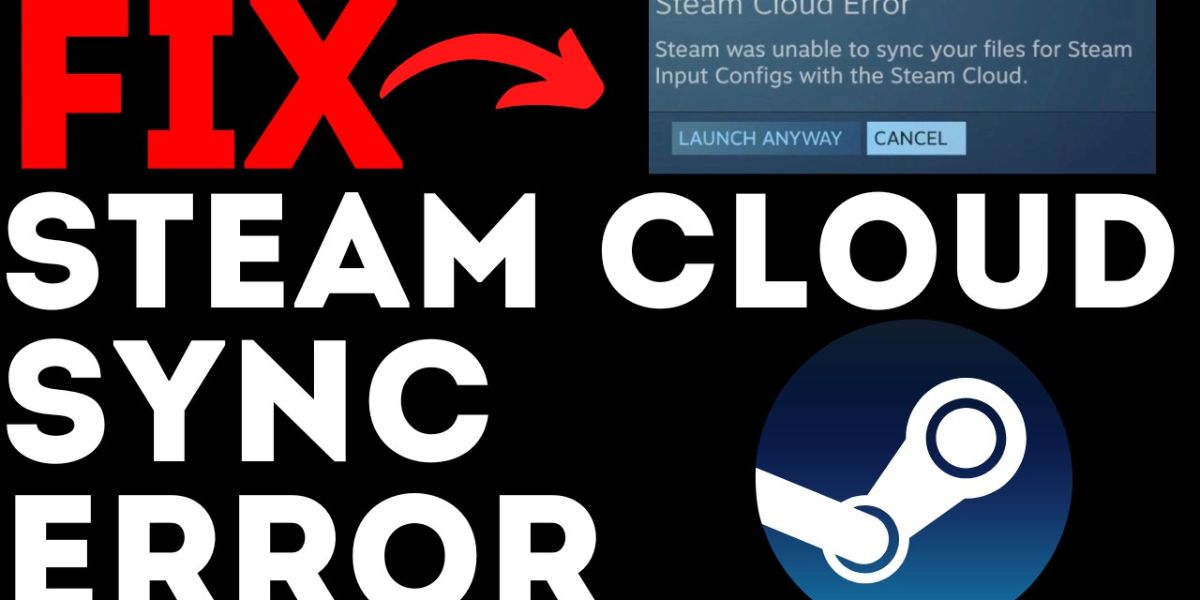
You’ve encountered Steam Cloud errors that prevent your game progress from saving correctly. This guide offers immediate fixes and troubleshooting steps for common Steam Cloud syncing problems, so you can get back to playing without losing your saves.
Why Steam Cloud Isn’t Syncing
Seeing “Steam Cloud Error” alerts for your games can be concerning. This means Steam struggles to upload your progress to its cloud servers. Losing game progress due to these sync issues is a common frustration for many gamers.
Properly syncing game saves backs up your progress and makes it accessible across different devices. When syncing fails, you risk losing hours of gameplay. This guide helps you resolve these issues.
What You’ll Need
To troubleshoot Steam Cloud syncing, you need access to your PC with an active internet connection. Ensuring Steam is up-to-date and you have administrative privileges will also help.
Step 1: Check Steam’s Status and Schedule
Steam performs scheduled maintenance that can temporarily disable cloud syncing. This maintenance commonly occurs on Tuesdays around 6 PM EST and typically lasts for about an hour.
If you encounter sync issues during this time, wait for maintenance to complete. Troubleshooting during this window may not resolve the problem.
Step 2: Verify Game Installation Folder and Default Drive
A frequent cause of Steam Cloud sync errors is installing games on a drive other than your primary C: drive, especially if C: is the default download location. This mismatch confuses the syncing process.
Check your Steam download settings. Ensure game installations and your default download drive are configured consistently to prevent sync errors.
Step 3: Manually Force a Steam Cloud Sync
You can often resolve minor synchronization glitches by disabling and then re-enabling Steam Cloud for a specific game. This forces Steam to re-evaluate the sync status.
To do this, right-click the game in your Steam library, select Properties, navigate to the Local Files tab, and toggle off Steam Cloud sync. Play the game briefly, then re-enable Steam Cloud sync.
Step 4: Resolve File Mismatches
When a “file mismatch” error appears, Steam prompts you to choose which save files to keep. Handle this carefully to avoid deleting your latest progress.
When prompted, always prioritize selecting the save files located on your local Windows drive. Choosing the cloud option in a mismatch scenario can delete your local saves, causing data loss.
To safeguard your progress, back up your local save files. You can find save file locations on resources like PCGamingWiki.
Step 5: Ensure Proper Game Shutdowns
Steam needs to update cloud saves after you finish playing. This process occurs when you exit the game correctly.
Avoid force-quitting applications or abruptly turning off your PC. Always exit games through their in-game menus to allow Steam to complete the save and sync processes.
Tips & Troubleshooting
If previous steps don’t resolve your syncing issues, try restarting the Steam client. A simple restart can clear temporary glitches that prevent synchronization.
You can also verify the integrity of your game files through Steam’s properties. Additionally, check if your firewall or antivirus software is blocking Steam’s connection to its cloud servers.
Keep your game saves backed up, especially for frequently played or critical progress games. A manual backup acts as your safety net.
Conclusion
Troubleshooting Steam Cloud sync problems can seem daunting, but these steps help resolve most common errors. Remember to check maintenance schedules, manage installation paths, and carefully handle file mismatches.
Enjoy your games with the peace of mind that your progress is saved correctly. Most Steam Cloud sync issues are manageable with these quick fixes and best practices.
Frequently Asked Questions
Why are all my games showing a ‘Steam Cloud Error’?
This error often occurs if your games are installed on a drive different from your main C: drive, and C: is set as Steam’s default download location. Ensure your Steam download settings are consistent.
What should I do if I get a ‘file mismatch’ error with Steam Cloud saves?
When a file mismatch error appears, prioritize selecting the save files on your local Windows drive. Choosing the cloud option could delete your local saves. Back up your local save files; check sites like PCGamingWiki for locations.
How can I prevent losing game progress due to syncing issues?
Prevent progress loss by regularly checking your Steam Cloud sync status, ensuring proper game shutdowns to allow uploads, and always backing up important local save files. Handle file mismatches by prioritizing local saves.
Is Steam maintenance causing my cloud sync problems?
Yes, Steam maintenance, often on Tuesdays around 6 PM EST, can temporarily disable cloud syncing for about an hour. If you experience issues during this time, wait for maintenance to conclude.
How do I back up my Steam game saves?
Locate your Steam game save files on your PC. PCGamingWiki is a resource for finding exact save file locations for most games. Copy these files to a safe external location.
The post Steam Cloud Not Syncing? Fix Game Sync Errors Fast appeared first on trendblog.net.