
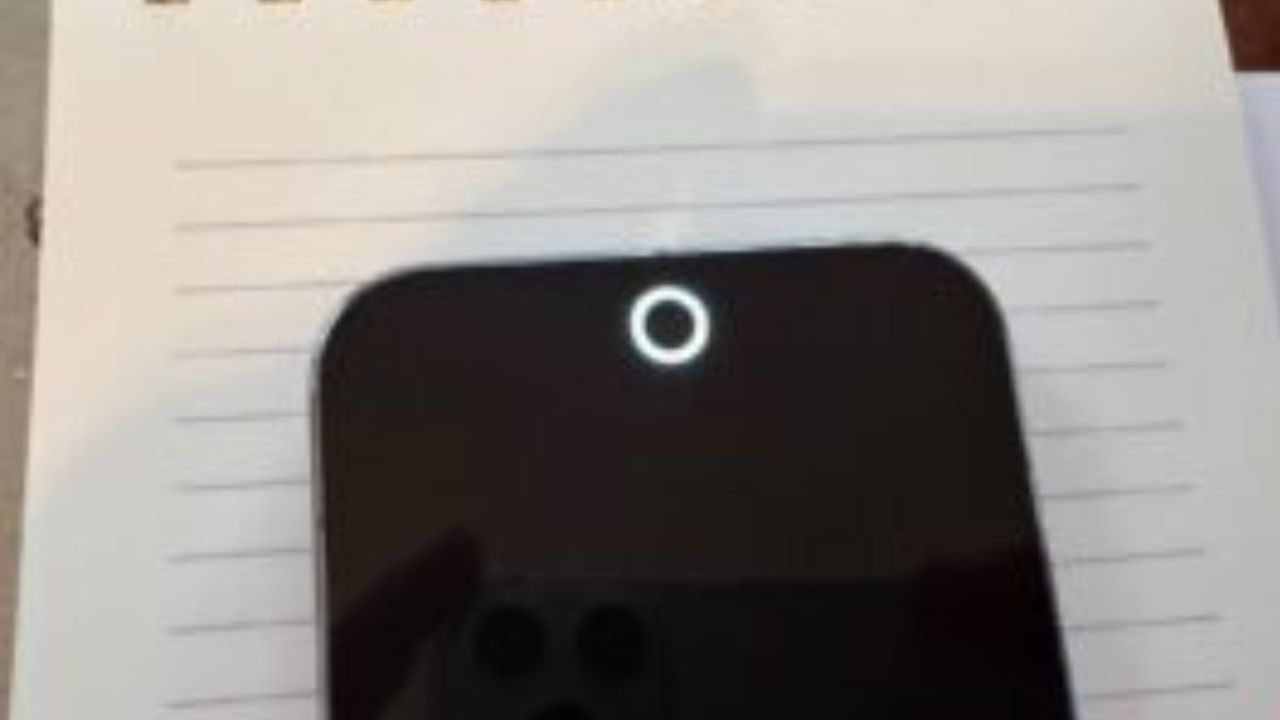
You can add a customizable notification light to older Android phones using the aodNotify app, which brings features similar to the Pixel 11 Pro’s HiLight. This app requires your phone’s always-on display to be active to function.
Introducing Google’s Pixel 11 Pro and its HiLight Feature
The Pixel 11 Pro series introduces a feature called HiLight, which revives the notification LED in a new form. This glowing light, located near the camera, can be customized to alert you with specific colors when certain contacts try to reach you. It replaces the temperature sensor found in previous models.
HiLight serves two primary purposes on the Pixel 11 Pro. It indicates the status of Gemini when it’s operating as an agent with your phone off. More significantly, it functions as a notification LED, allowing you to discern notification types by their color on a per-contact basis.
You can select from five distinct colors for HiLight. For instance, a red glow could signify a text from your spouse, while an orange light might indicate an incoming call from your father. This feature is useful for staying informed without needing to wake your phone.
To see the HiLight indicator, the Pixel 11 Pro needs to be placed face down. This notification system can also help conserve battery life, as you can ascertain your phone’s status at a glance. It’s an integrated system designed for quick information access.
Bringing Pixel 11 Pro’s HiLight to Older Android Phones
You can achieve similar notification functionality to the Pixel 11 Pro‘s HiLight feature on older Android devices using an app called aodNotify. While not as seamlessly integrated as Google’s native solution, it effectively provides custom-colored lighting effects on your Always-On Display (AOD).
This app allows you to easily identify the type and sender of your notifications with a simple glance. Although it’s not identical to the HiLight system, the underlying concept is the same: providing at-a-glance notification status. The app offers powerful features for managing these alerts.
I tested aodNotify on both a Pixel 10 Pro and a Galaxy S22, and found it worked as described. It’s important to note that there are different versions of the app for Samsung phones compared to other Android devices. The core idea remains consistent across both.
The app aims to replicate the benefit of a dedicated notification light. By using your phone’s screen, it can display visual cues for incoming alerts, making it easier to stay informed without constant interaction. This makes it a compelling option for those seeking enhanced notification visibility.
Setting Up and Using aodNotify for Custom Notifications
aodNotify utilizes your screen’s Always-On Display (AOD) to signify notification statuses. It can create a glowing colored ring around your screen or a circular indicator near your camera cutout. The app requires AOD to be active continuously to function correctly.
You can select which applications trigger the notification light. The paid upgrade allows for specific colors per app and even per contact, offering deeper customization. Without the upgrade, you can still assign colors on an app-by-app basis, such as setting Gmail to red and Slack to yellow.
How to set up aodNotify:
- Install aodNotify from your device’s app store.
- Enable Always-On Display (AOD) in your phone’s settings.
- Grant necessary permissions: This includes ‘display over other apps’ (to draw on screen), ‘accessibility service’ (for floating overlays), and ‘notifications access’.
- Configure notification settings within aodNotify. You can choose apps that trigger notifications and, with the Pro version, assign specific colors to them or to individual contacts.
- Adjust lighting effects. You can choose between a screen-edge ring or a camera-cutout indicator. The Pro version offers an LED dot effect.
- Position the effect (if needed). For the camera cutout effect, manual adjustment along the X and Y axis may be required for proper alignment.
Limitations and Alternatives to aodNotify
While AOD is useful, it doesn’t provide detailed notification information from a distance. aodNotify aims to solve this by offering visual cues, but it requires AOD to be constantly active, which can impact battery life. This makes its paid features less compelling unless you frequently need to check notifications from across a room.
The free version of aodNotify offers basic customization, allowing you to assign colors to different apps. However, advanced features like per-contact colors and an LED dot effect are part of the paid upgrade, which costs $6.99 as a one-time fee. The free version still provides significant notification enhancement.
There are several caveats to using aodNotify. Unlike the Pixel 11 Pro‘s HiLight, which requires the phone to be face down, aodNotify requires the screen to be face up with AOD on to be visible.
The app also requires extensive permissions to monitor notifications, though it does not require internet access and is free of ads.
Manually aligning the camera cutout lighting effect can be frustrating, though the app allows for X-Y axis adjustments. The screen edge lighting feature generally aligns better and is recommended. If basic AOD suffices for your notification needs, you can skip this app. However, for glanceable, color-coded notification status from afar, aodNotify offers a unique solution.
Frequently Asked Questions
What is the Pixel 11 Pro’s HiLight feature?
HiLight is a customizable notification light on the Pixel 11 Pro series, located near the camera. It glows with a color you choose to alert you about specific contacts or notification types, acting as a modern revival of the notification LED.
How can I get Pixel 11 Pro’s HiLight feature on my old Android phone?
You can achieve similar functionality with the aodNotify app. It uses your phone’s Always-On Display to provide custom-colored lighting effects for notifications, giving you at-a-glance information about who is contacting you.
How do I set up the aodNotify app to customize my notifications?
Install aodNotify, enable your phone’s AOD, and grant the app necessary permissions. Within the app, you can specify which apps trigger notifications and assign custom colors, especially with the paid upgrade for per-contact customization.
What are the drawbacks of using aodNotify?
aodNotify requires your Always-On Display to be enabled, which can increase battery drain. The most advanced features, like per-contact colors, are behind a paywall. Manual alignment of the camera cutout effect can also be tedious.
What is the cost of aodNotify’s Pro version?
The best value for the Pro version of aodNotify is a one-time fee of $6.99. This unlocks additional features such as per-app and per-contact color customization.
The post Pixel 11 Pro HiLight on Any Android: How to Add $6.99 Notification Light appeared first on trendblog.net.