
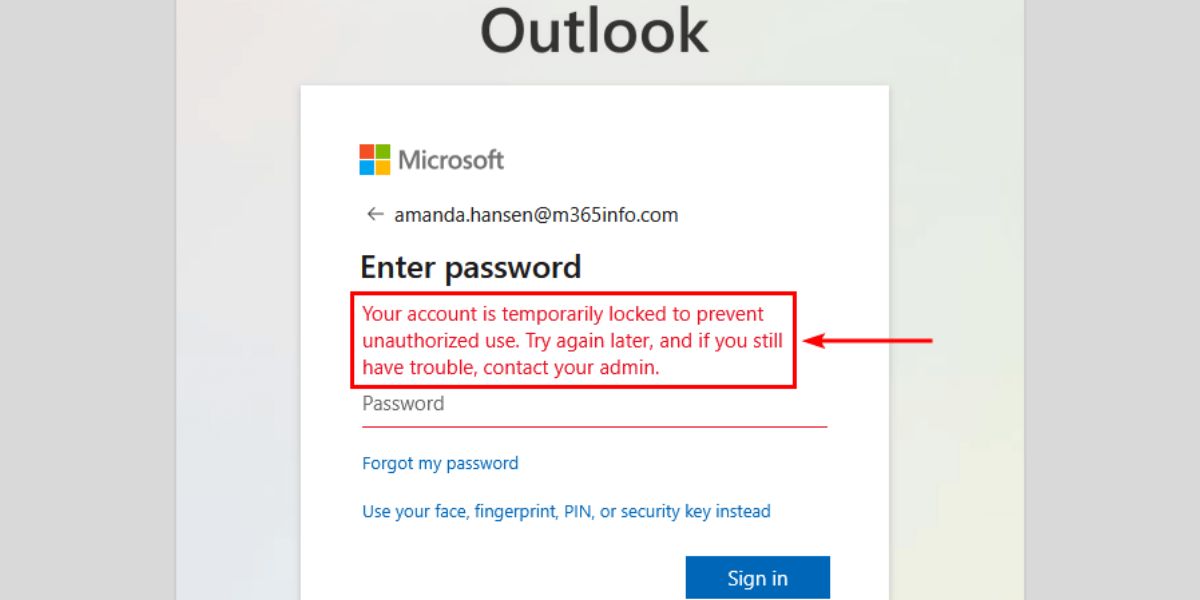
You received the ‘Account Temporarily Locked to Prevent Unauthorized Use’ message. This guide offers immediate steps to regain access, explains common causes, and details troubleshooting methods you can perform yourself.
Understanding the ‘Account Locked’ Error
An account locks temporarily to prevent unauthorized use. This often results from multiple failed login attempts, detected suspicious activity, or predefined security policies.
The lockout duration can increase with each failed attempt. Repeating login attempts during a lockout only extends your inability to access the account.
What You’ll Need
To resolve this, you typically need access to your registered email for password reset links or verification codes. You may also need to recall answers to your security questions.
If you work in a managed environment like Office 365, contact your IT administrator. Keep their contact information handy.
Step 1: Wait for the Lockout Period to Expire
The simplest fix is often to wait for the lockout to end. This duration varies by system and the number of prior failed attempts.
Avoid further login attempts during the waiting period. Each attempt can reset or extend the lockout. Patience allows the timer to expire naturally.
Step 2: Reset Your Password
If prompted, reset your password using the provided link or account recovery process. A new, strong password frequently resolves lockout issues caused by forgotten credentials.
However, a password reset does not always reset the lockout timer. You may still need to wait for the original lockout period to expire after changing your password.
Step 3: Check for Suspicious Activity
Consider recent login attempts. Did you try logging in from an unfamiliar device or a different location? These actions can trigger security locks.
If you suspect your account has been compromised, report it immediately. Reviewing recent account activity, if accessible, can offer clues, but contacting support is the safest next step.
Step 4: Contact Your Administrator
For users in organizations using services like Office 365, your IT administrator can help. They can unlock your account directly via administrative portals.
Administrators can resolve lockouts using the Microsoft 365 Admin Center or specific PowerShell commands. This is crucial if self-service resets and waiting fail.
Tips & Troubleshooting
Why Did My Account Get Locked?
Accounts typically lock due to multiple incorrect password entries. Other common causes include suspicious logins from new devices or IP addresses, or administrative security policy violations like Multi-Factor Authentication (MFA) failures.
Does Password Reset Always Unlock the Account Immediately?
No, resetting your password does not always unlock the account instantly. The lockout timer may continue, requiring you to wait for the period to expire even with a new password.
How Long Are Accounts Typically Locked?
The lockout duration varies. Some systems lock an account for a short period, like one minute, after a set number of failed attempts. Each subsequent failed attempt can extend this lockout time.
What if I Suspect a Compromised Account?
If you suspect your account is compromised, change your password immediately if possible and contact your IT administrator or platform support. Report any suspicious activity observed.
Conclusion: Reclaiming Your Account Access
Resolving the ‘Account Temporarily Locked to Prevent Unauthorized Use’ error usually involves waiting for the lockout, resetting your password, and sometimes contacting your IT administrator.
Understanding common lockout triggers helps prevent future issues. Following these steps allows you to efficiently regain account access.
Frequently Asked Questions
Why is my account locked with the ‘prevent unauthorized use’ message?
This message signifies a temporary account lock, usually due to multiple failed logins, suspicious sign-ins from new locations or devices, or administrative security policies, including Multi-Factor Authentication (MFA) failures.
How long will my account be locked?
The lockout duration varies and can increase with each additional failed login attempt. Some lockouts are short, but repeated attempts can significantly extend them.
What’s the quickest way to unlock my account?
Quick methods include waiting for the lockout, resetting your password, or contacting your IT administrator for Office 365 accounts. This is a fast way to resolve lockouts.
What should I do if resetting my password doesn’t unlock my account?
If resetting your password doesn’t grant immediate access, you likely need to wait for the lockout timer to expire. Ensure you use the new password correctly after the waiting period.
Can an administrator unlock my account?
Yes, administrators can unlock managed accounts, such as those in Office 365. They typically use tools like the Microsoft 365 Admin Center or PowerShell to resolve account lockouts.
The post Account Locked? Fix ‘Prevent Unauthorized Use’ Error Fast appeared first on trendblog.net.