
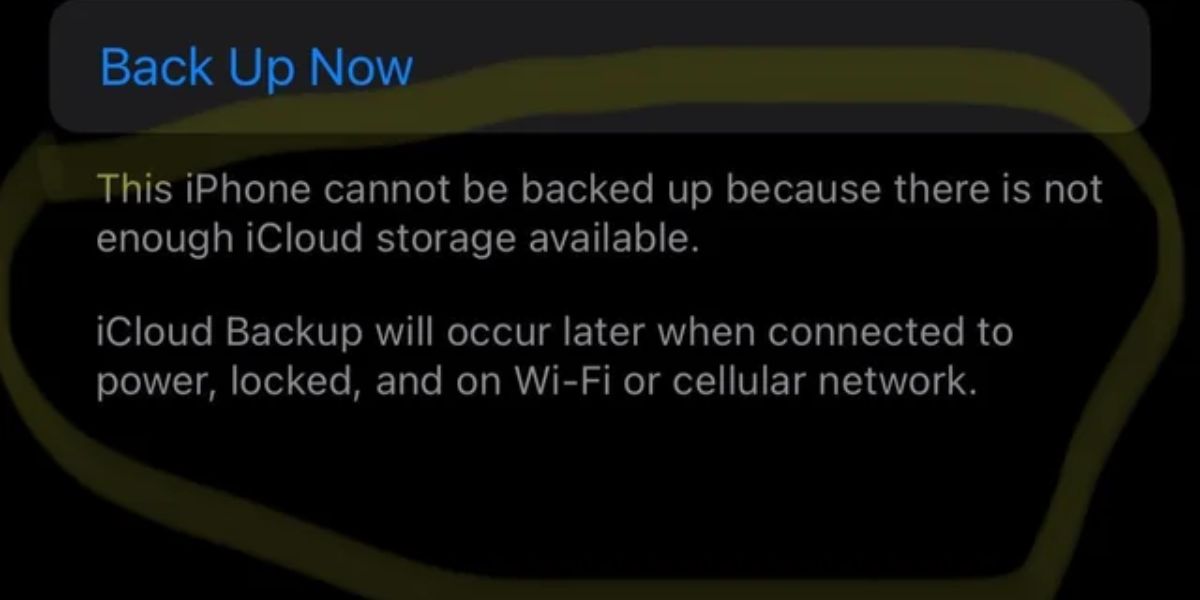
You’ve hit the ‘not enough iCloud storage’ snag on your iPhone, even when you thought you had space. This guide will show you how to check your next backup size and make it smaller. We’ll also cover how to manage your existing iCloud storage and what to do if the problem continues.
Why You See ‘Not Enough iCloud Storage’ Even With Space
The ‘not enough iCloud storage’ message can be misleading. It doesn’t always reflect your total available iCloud space but instead shows the estimated size of your next backup. This predicted size might exceed your current free storage, even if you’re within the standard 5GB free tier.
Remember that iCloud stores more than just device backups. Data like contacts, calendars, photos, and various app data also consume iCloud storage. All of this combined usage can trigger the backup error.
What You’ll Need
To fix your iPhone backup, you’ll need your iPhone connected to a stable Wi-Fi network. You will also need your Apple ID and password to access your iCloud settings.
Step 1: Check Your Next Backup Size
First, see how much space your iPhone thinks your next backup will require. Open the Settings app.
Tap your Apple ID at the top of the Settings screen. Then, tap iCloud, followed by Manage Account Storage. Finally, tap Backups.
Here, tap the name of the device you are currently using. You should see an option labeled Next Backup Size. This figure indicates the estimated storage needed for your upcoming backup.
Compare this number to your available free iCloud storage.
Step 2: Reduce Your Next Backup Size
If the ‘Next Backup Size’ exceeds your available free iCloud storage, you can reduce it by deselecting apps not essential for your backup. On the same Backups screen, scroll down to the list of apps.
Each app shows how much data it contributes to the backup. To reduce the total backup size, toggle off the switch next to any apps whose data you don’t need saved in your iCloud backup. Apps like high-resolution games or large media libraries often contribute the most to backup size.
After toggling off unwanted apps, your iPhone will recalculate the ‘Next Backup Size’. Attempt to perform the backup again once this estimated size falls within your available free storage.
Step 3: Free Up Existing iCloud Storage
If reducing the backup size doesn’t resolve the issue, or if you want to maintain more comprehensive backups, you can free up space in your existing iCloud storage. Go back to Settings > Apple ID > iCloud > Manage Account Storage.
Here, you can delete old, unneeded backups by tapping on Backups and then selecting and deleting older device backups. You can also manage other data like iCloud Photos, messages, or data from other apps by selecting them from the ‘Manage Account Storage’ screen and deleting unnecessary files.
Step 4: Restart Your iPhone and Try Again
Sometimes, temporary software glitches can interfere with the backup process. A simple restart can clear these issues. Turn off your iPhone completely, wait about 30 seconds, and then turn it back on.
Once your iPhone has restarted and you’ve reconnected to your Wi-Fi network, try initiating an iCloud backup again from Settings > Apple ID > iCloud > Back Up Now.
Tips & Troubleshooting
If the problem continues, check Apple’s System Status page online to ensure there are no ongoing iCloud server issues. Also, confirm your Wi-Fi connection is stable and not experiencing interruptions.
If you have followed all these steps and are still unable to back up your iPhone to iCloud, there may be a less common issue with your account’s server-side configuration. In this situation, you should contact Apple Support for further assistance.
Frequently Asked Questions
Why does my iPhone say ‘not enough iCloud storage’ when I have free space?
This error typically occurs because the predicted size of your next backup exceeds your available free iCloud storage, not necessarily your total iCloud storage capacity. Other data like photos, contacts, and app data also use iCloud space, reducing what’s available for backups.
How can I see what’s taking up space in my iCloud backup?
You can see the components of your backup by going to Settings > Your Name > iCloud > Manage Account Storage > Backups. Then, tap on your device name. You will see the Next Backup Size and a list of apps included in the backup.
How do I reduce the size of my iPhone’s iCloud backup?
To reduce the backup size, navigate to Settings > Your Name > iCloud > Manage Account Storage > Backups. Tap on your device name and toggle off the apps you don’t want to include in future backups. This will lower the ‘Next Backup Size’.
What should I do if none of these steps fix my iCloud backup issue?
If you’ve tried checking the backup size, reducing app data, freeing up existing iCloud storage, and restarting your iPhone, and the issue persists, you should contact Apple Support. There might be an account-specific problem that requires their intervention.
The post iPhone Backup Stuck? Fix ‘Not Enough iCloud Storage’ Error appeared first on trendblog.net.